Route Introduction
TimeZero allows for the creation of up to 200 routes of 500 waypoints each allowing you to plan multiple voyages.
Note: Routes can only be created on the default "TimeZero" layer. It is not possible to create or move routes to another layer. This restriction has been implemented so that routes are always and automatically synchronized with all your TimeZero devices. Layers can only be used with Tracks, Marks, Boundaries and Annotations. For more information about layers, please refer to the Layer Introduction chapter.
Routes can be built using the "Route" tool by clicking directly on the chart to create multiple points of passage (called "waypoints"). If you are using a TZ Maps chart, you can use the Assist mode which allows you to create complex routes with just a few clicks thanks to the TZ Maps feature "Route Assist".
In addition to building your route, TimeZero offers lots of feature to plan your routes (ETA, route safety check, tides & currents integration, weather along the route...) that are described in the following chapters. Once you are ready to navigate, you can designate the route you want to follow and "activate" it. The active route is displayed in red and has special priority in the navigation system. When a route is activated, the first waypoint becomes active (surrounded in yellow) and if a pilot is connected and configured in TimeZero, the route information (bearing and XTE) will be sent and used to automatically steer the boat.
On the picture below, the route on the bottom is activated:
When enabled, the route safety is automatically analyzed by TimeZero. Safe legs have a green background while dangerous leg will have a red background. For more information, please refer to the Route Safety chapter.
Hiding Individual Routes
You can hide individual routes from the Route list by selecting or not the visible checkbox:

Note: It is not possible to hide the Selected (Planning). The Planning Route will always be displayed on the chart even if the route has been hidden. If you want to hide the planning route, right click anywhere and select "unselect all".
Note that you can select multiple routes from the list (using the SHIFT or CTRL key) and then use the right click on the selection to change the visibility of multiple routes at the same time.
Using Filters to Hide or Show a group of Routes
If you want to selectively hide or show multiple routes, you can create and use a Filter. For example, you could use a filter that only show routes that have been created in between two specific dates or route that contains a specific string in their name.
An easy way to group multiple routes for a specific trip is to prefix all the route name (for example "Alaska"). Then you can create a filter that only show routes whose name contains "Alaska":
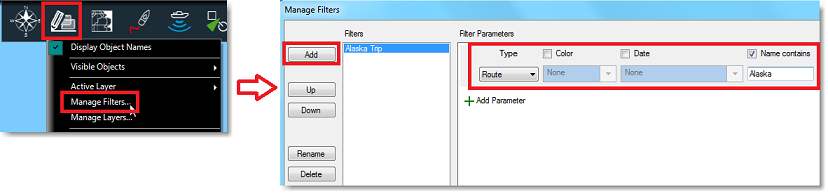
For more information on filters and how to manage and use them, please refer to the Filters chapter.