FAR 3xx0 Connection
The "Furuno Radar Module" needs to be unlocked
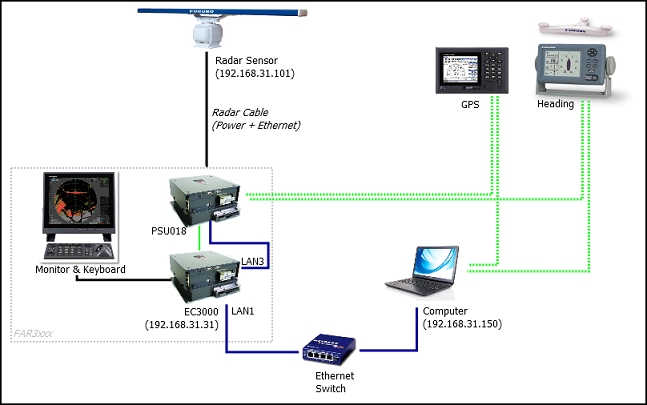
The FAR3xxx communicates directly with TimeZero via LAN1 of the processor unit.
IMPORTANT: You cannot mix and connect any NavNet sensors (DFF sounders or DRS radars) and FAR3xxx at the same time to TimeZero. NavNet sensors were designed to only operate on the "NavNet" network (172.31.x.x) which is incompatible with the FAR3xxx network (192.168.31.x). Note that it is NOT possible to use a second Ethernet card on the computer to connect NavNet sensors. This is because TimeZero can only use one Ethernet Card at a time for Furuno Sensor communication (Radar and Sounder).
Configure the Radar
Check and Assign Radar Hostname(s)
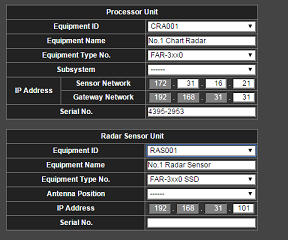
When multiple radars are networked or inter-switched together, a unique "Equipment ID" (and IP address) must be assigned to each processor and radar sensor. Note that for TimeZero to correctly detect the radar, at least one Radar Sensor Unit must be assigned to 192.168.31.101. Please refer to the Furuno Radar Installation Manual to properly setup Equipment ID (and IP address):
IMO Mode
When TimeZero is interconnected to the FAR3xxx via the network, the radar should be set to IMO Mode B. To set the IMO type, hold “HL OFF” and press the “MENU” key 5 times on the FAR3xxx. The “Radar Installation” (9) menu will appear. Select “Installation” (3), then "Type" (3). Set to "B".
Configure the computer
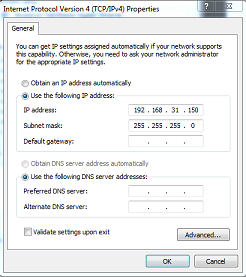
TimeZero connects to a Furuno FAR3xxx radar through an Ethernet connection (100Base-T). The computer needs to have an IP address that “matches” the Radar Network (192.168.31.x / 255.255.255.0) in order to exchange information with the radar. We highly recommended using 192.168.31.150 as a fix IP address for the computer with a subnet mask of 255.255.255.0.
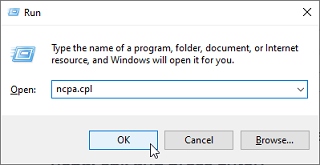
Open the "Network Connections" control panel of your computer to adjust the IP address. Under Windows 10/11 you can press the combination shortcut Windows Key + R to open the Run dialog box. Type "ncpa.cpl" and click on "OK":
Double click on the Network Adapter connected to the radar (usually “Local Area Connection”).
Note: If you have multiple Area Connections (multiple Ethernet Cards) and if you don’t know which one is connected to the radar, you can temporary disconnect the Ethernet Cable connected to the radar from the computer and look at which icon will display a red cross. This will indicate the LAN that has been disconnected from the computer, and thus the one that needs to be configured.
Select "Properties" on the "Local Area Connection Status" window. Double click on “Internet Protocol Version 4 (TCP/IPv4)”. Use the fix IP address 192.168.31.150 with a subnet mask of 255.255.255.0:
Once the computer's IP address has been assigned, it is recommended to Ping the IP address of the Radar Sensor Unit (192.168.31.101) to make sure the network is correctly set up. For more information on how to ping an Ethernet device, refer to the How To Ping chapter. Once connectivity has been confirmed, launch TimeZero
Configure Instruments
Instruments (GPS, Heading, AIS, ...) need to be connected directly to the computer via NMEA0183 or NMEA2000. When connecting instruments to TimeZero, it is very important to make sure that the same GPS and Heading sources connected to the FAR radar are also used and connected to TimeZero. Connecting a different GPS and/or Heading source will result in radar overlay issue.
ARPA Configuration
At this time, TimeZero cannot "share" the same ARPA target with the FAR3xxx (unless a TTM serial output is configured). It is recommended to use TimeZero own local ARPA processing. This setting is adjusted from the TimeZero Radar Options by setting "ARPA Processing" to "TimeZero".