Introduction
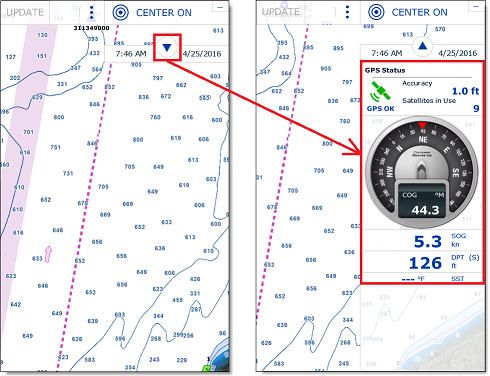
The NavData panel is displayed on the right side of the screen and can be opened/closed by clicking on the arrow at the top:
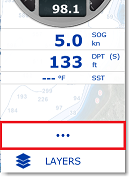
The content of each panel can be fully customized. To add a NavData, click on the "..." button located at the bottom of the panel:
To remove a specific NavData, right click on it and select "Remove".
To change the position of the NavData inside the panel, just click and drag to the new location.
You can edit most of the NavData (to change the information it displays) by right clicking on it.
Note that the configuration of the NavData panel is independent per WorkSpace. This means that you can customize NavData that are relevant to navigation in the "Navigation" WorkSpace (such as Course, Speed, GPS Status,...) and configure another set of NavData in the planning WorkSpace (Weather, Cursor Information,...).
Note: When you add too many NavData or when the list are displayed at bottom of the screen, the NavData may eventually "overflow" and not be visible anymore. If you see the overflow icon at the bottom of the NavData panel, it is recommended to delete some NavData to free up space:
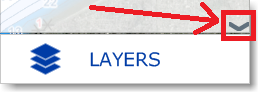
Note that the overflow icon is just an indication (you cannot click on it to scroll the NavData).
The NavData panel overall size and transparency can be adjusted from the General Options.