Registering TimeZero
Registering your software is strongly recommended, as it allows us to offer more effective technical support. Registration is also necessary to use our online services, including Weather, Chart Update Notifications, AIS Online, Own Ship Cloud Monitoring, and Anchor Watch Cloud Monitoring.
You can register your TimeZero software either online through a web browser or directly within the software, provided the computer running the software has Internet access.
Register using the My TIMEZERO Website
If the computer running TimeZero is not connected to the Internet, you can complete the registration from another computer by visiting www.mytimezero.com.
-
Visit www.mytimezero.com
-
Click "My TIMEZERO" in the top-right corner:

-
Sign in using your My TIMEZERO credentials. If you don’t have an account yet, select “Create an account” and provide a valid email address and your name, or sign up using your Facebook or Apple login:
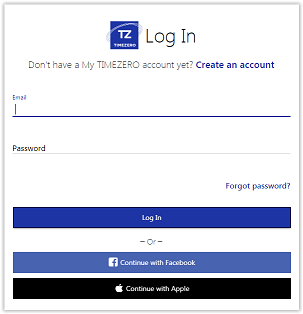
Note: After creating your My TIMEZERO account using an email address, you must verify your email before proceeding. If you do not receive the verification message within one hour, be sure to check your Junk/Spam folder. Once your account has been confirmed, repeat steps 1 through 3 and then continue with the instructions below.
-
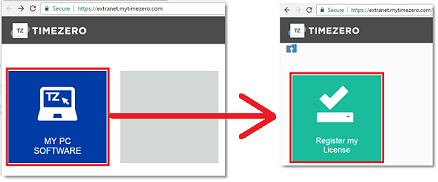
After logging in, select “My PC Software”, then click “Register my License”:
-
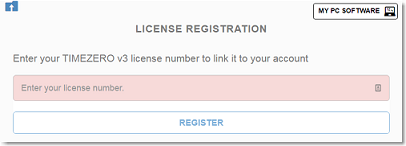
Enter your TIMEZERO serial number. The serial number begins with “TZ” and can be found in the “Support” section of the software, accessible by clicking the TIMEZERO button in the top-left corner:
-
If the serial number is valid, it will be associated with your account, allowing you to view your product information.
Register directly from the Software
When you launch TimeZero with an active Internet connection, a screen will appear prompting you to register your license directly within the software:
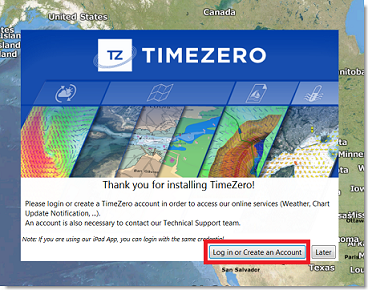
Note: If you missed the login prompt at startup, you can access it manually by clicking the “Login” button in the My TIMEZERO Options
If your license has not yet been registered, the screen below will appear allowing you to either create a new account by selecting “Create an account”, or enter your credentials if you already have a My TIMEZERO account:
NOTE: After creating a My TIMEZERO account using an email address, you must verify your email before continuing. If you do not receive the verification email within one hour, be sure to check your Junk/Spam folder.
After signing in, your license will be automatically linked to your My TIMEZERO account.
Password and Account Management
If you ever forget your My TIMEZERO password, each login screen includes a “Forgot password?” link that allows you to reset your password using the email address provided when you created your account.
Important: this password reset option applies only to standard My TIMEZERO accounts and does not apply to Apple or Facebook logins, as these credentials are managed directly by Apple or Facebook, not by TIMEZERO.
If you need to change your password, go to login.mytimezero.com and click on the “Edit My TIMEZERO Account” button. This will expand a section where you can update your personal information and access the link to change your password.
Please note that the email address associated with a My TIMEZERO account cannot be changed directly by the user. If you need to update your account email, you must contact Tech Support for assistance.