AIS & ARPA Fishing Mode
The AIS & ARPA Fishing Mode is a feature designed to help you quickly identify vessels that are likely engaged in fishing operations. Fishing vessels often operate within a specific low-speed range (for example while trawling).
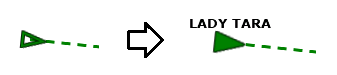
When Fishing Mode is enabled, TimeZero automatically emphasizes AIS and ARPA targets whose speed falls within the defined fishing range by displaying them with a larger icon (and a filled icon for AIS targets), making them easier to identify on the chart. Additional options allow you to filter the display to show only fishing targets, assign them a dedicated color, or limit trail display specifically to those vessels, helping you spot them more quickly and better analyze their behavior.
Configure AIS/ARPA Fishing Mode
To enable this feature, open the Targets Options and click on the "AIS/ARPA Fishing Mode" to open a window. Inside the settings window, you can enable the Fishing Mode and adjust its settings:
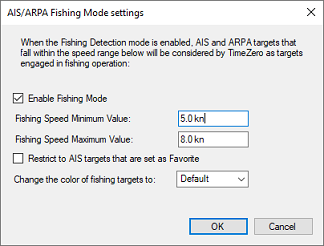
Begin by setting the minimum and maximum speed thresholds that TimeZero will use to identify a target as engaged in fishing. By default, the minimum value is 5 knots and the maximum value is 8 knots. If you want Fishing Mode to apply only to specific AIS vessels, you can first add those targets to your AIS Favorite List and then enable the option “Restrict to AIS targets that are set as Favorite.” TimeZero will then perform fishing detection only on vessels included in your favorites, allowing you to concentrate on selected targets.
When a target is classified as fishing, TimeZero automatically increases its visibility on the chart. AIS targets will be displayed using the plain AIS icon, shown slightly larger (about 20% bigger), and their label will be forced on even if target labels were previously disabled:
You can further enhance recognition by assigning a dedicated color to fishing targets through the option “Change the color of fishing targets to.” This makes vessels engaged in fishing operations immediately stand out on the chart.
Note: TimeZero applies color rules using a priority system, where dangerous targets always remain the highest priority (red flashing), followed by fishing targets, then user-defined colors, then dynamic colors, and finally the default target color.
Use the AIS/ARPA Fishing Mode
In addition to the distinctive icon and optional color, TimeZero provides several other tools that make fishing targets even easier to identify and monitor.
Target Trail
Rather than displaying trails for every target on the chart, you can choose to show trails only for vessels detected as fishing. To do this, click the "Targets" button in the Ribbon and select “Display Trail on Fishing Targets only.” This helps highlight the past maneuvers of fishing vessels while reducing screen clutter caused by trails from all other targets.
Target List
You can configure the AIS and/or ARPA target lists to include a dedicated Fishing column. Open the AIS or ARPA list, click the "Actions" button (located on the top right of the list), and choose "Configure List". From there, add the Fishing column to the displayed fields and reorder it as needed. When a target is classified as fishing, the value “Yes” will appear in this column. You can sort the list by this field to group all fishing targets together, and selecting an entry in the list will automatically find and center the corresponding target on the chart.
You can also configure the AIS Target List NavData to display only AIS targets that are detected as fishing. To do this, simply right-click on the AIS List NavData and select “Restrict to Fishing AIS.” This will filter the NavData view so that only fishing targets are shown, providing an alternative way to monitor fishing activity while still keeping all targets visible in the full AIS list.
AIS Chart Filter
If you want to focus only on fishing activity, TimeZero also allows you to filter the chart display so that only fishing AIS targets are shown. Simply click the "Targets" button in the Ribbon and select “Display Fishing AIS.” To return to the normal view, select “Display All AIS” from the same menu.