FA170 AIS
The Furuno FA170 is a Class A AIS Transponder that supports the NavNet protocol when connected to a computer via its LAN (Ethernet) port. Once properly configured and recognized by TimeZero, it enables users to send AIS text messages and update AIS voyage information directly from within TimeZero (via the Target button located in the Ribbons).
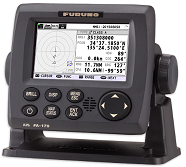
Configure the FA170
Set the NavNet Mode
The FA170 must be switched in "NavNet" mode to properly interface with TimeZero. Open the [SERVICE] menu by following the procedure outlined in the FA170 installation manual.
- Go to [OTHER SET] and press the ENT/ACK key.
- Select [NW PROTOCOL] and press ENT/ACK again.
- Select [NAVNET] and press ENT/ACK. A confirmation pop-up will appear.
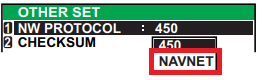
- Press [YES] to apply the new setting which will restart the unit.
Set the IP Address
The FA170’s IP address must be configured based on the network type in use (NavNet or FAR). For a NavNet network, use an IP address in the range 172.31.x.x with a subnet mask of 255.255.0.0. For a FAR network (used when interfacing with a FAR3xxx or FAR2xx8) use an IP address in the range 192.168.31.x with a subnet mask of 255.255.255.0.
To verify and if needed change the FA170 IP address, open the [INITIAL SET] menu by following the procedure outlined in the FA170 installation manual.
- Select [NETWORK] and press the ENT/ACK key.
- Highlight [IP ADDRESS] and press ENT/ACK to display the IP address settings window.
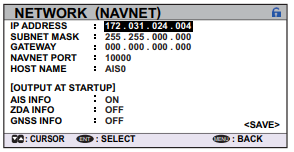
- Enter the desired IP address and subnet mask
We recommend to leave the default IP address for a NavNet network (172.31.24.4 / 255.255.0.0) and use 192.168.31.24 / 255.255.255.0 in case a FAR3xxx or FAR2xx8 is also present on the network.
Do not alter any other network settings.
Configure the computer
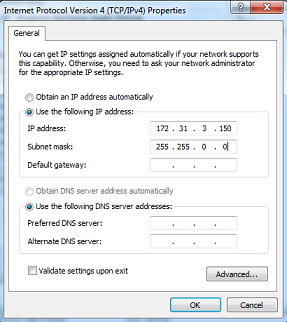
The computer needs to have an IP address that “matches” the FA170 network. We recommended using 172.31.3.150 as a fix IP address for the computer with a subnet mask of 255.255.0.0 for a NavNet network and 192.168.31.150 / 255.255.255.0 for a FAR network.
Open the "Network Connections" control panel of your computer to adjust the IP address. Under Windows 10/11 you can press the combination shortcut Windows Key + R to open the Run dialog box. Type "ncpa.cpl" and click on "OK":
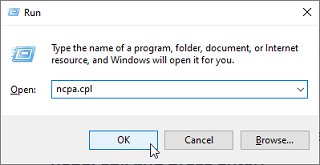
Double click on the Network Adapter connected to the radar (usually “Local Area Connection”).
Note: If you have multiple Area Connections (multiple Ethernet Cards) and if you don’t know which one is connected to the FA170 , you can temporary disconnect the Ethernet Cable from the computer and look at which icon will display a red cross. This will indicate the LAN that has been disconnected from the computer, and thus the one that needs to be configured.
Select "Properties" from the "Local Area Connection Status" window. Double click on “Internet Protocol Version 4 (TCP/IPv4)”. Use the fixed IP address 172.31.3.150 with a subnet mask of 255.255.0.0 (NavNet Network) or 192.168.31.150 with a subnet mask of 255.255.255.0 (FAR Network):
Once the IP address of the computer has been assigned, launch TimeZero in Navigation Mode.
TimeZero Initial Setup
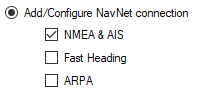
In TimeZero, the only required configuration is adding a NavNet connection through the Connection Wizard. To do this, open the Connection Wizard, choose “Manual Port Configuration,” select “Add/Configure NavNet Connection,” and check the “NMEA & AIS” box:
Click “Next,” ensure that “AIS” is selected in the Data list, then click “Next” again, followed by “Finish” to complete the setup.
Unlike an AIS connected via a serial port, there is no need to manually configure an output (ABM or VSD), as TimeZero will automatically enable this function when the FA170 is detected on the network.