Profile Window
The "PBG Module" needs to be unlocked to access this feature
The Profile Window allows you to analyze the bottom profile along a divider line or a track that has been previously recorded:
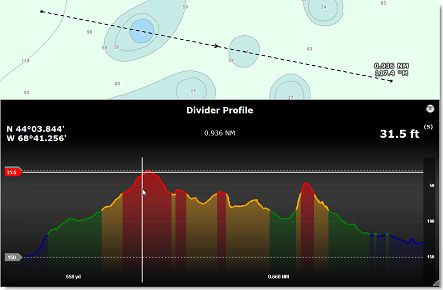
To display the profile window along a line, create a Divider Line using the "Divider" tool located in the ToolBar and then, double click on it or right click and select "Display Profile Window".
Once the profile window is open, it is possible to adjust the divider line on the chart by moving its extremities. The profile window will automatically adjust its content. Note that TimeZero will use the 3D database that are currently selected on screen to draw the profile window.
Note: It is not possible to display the profile window on a divider which is "linked" to the boat (a divider line that has been created by double clicking on the chart).
To display the profile window along a track line, right click on the corresponding track on screen and select "Display Profile Window". TimeZero will use the depth information embedded in the track to draw the profile window (the 3D database is not used in this case).
Note: It is not possible to display the profile window on a track which is currently being recorded by TimeZero
When you move the cursor over the profile window, the corresponding location is displayed on the chart:
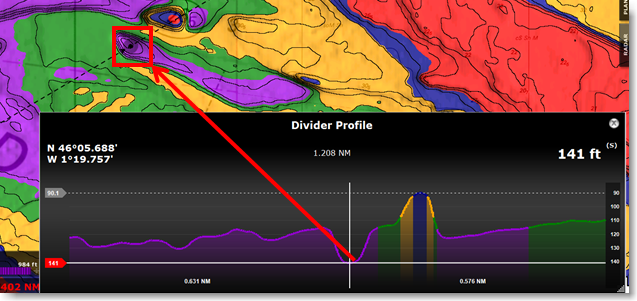
It is possible to create a mark by double clicking directly on the profile window.
Tips: The profile window can be resized by clicking and dragging on its lower right corner.
Note: The profile window will use the same colors as the "depth shading" color configuration.