Replay Archived Data
Once data has been archived, it can no longer be played back on the computer that performed the archiving. Archived recordings must therefore be replayed on a different computer. To access the archived files, use Windows Explorer to browse to the archive directory on the system. The data is organized into weekly subfolders. To retrieve recordings, copy the folder corresponding to the week you want to review. If the desired time period spans two separate weeks, copy both relevant weekly folders to ensure the entire range is available for replay.
In order for replay to function correctly, the license type used for playback on the second computer must match the license type that was used on the cmputer that recorded and created the archived data. A mismatch in license types may prevent proper playback.
Replay should always be performed on a separate computer rather than the operational system installed at the site. Using the original operational computer is not recommended, as it may interfere with current configuration settings. If the computer used for replay has previously been used for testing or other configurations, it is strongly recommended to reset TimeZero to factory default settings before starting the replay process. This helps prevent configuration conflicts that could affect playback performance.
Archived data is stored in folders containing weekly recordings. These folders usually include multiple related files, such as radar recordings and AIS recorder files. All files within an archived folder must remain together. Individual files should not be removed or relocated, as TimeZero automatically loads all associated files from the same folder during replay.
To start replay mode, first ensure that TimeZero is completely closed. Then navigate to the folder containing the archived data and drag any one of the files onto the TimeZero desktop icon. For example, dragging the AisRecorder.tzdba file is sufficient. When TimeZero launches, it will automatically detect and load all relevant files within that same folder and open directly in Replay Mode.
Once TimeZero has opened, select the Planning WorkSpace to review the recorded data. Radar overlay and target display must be enabled from the Ribbon to ensure all recorded information is shown. Adjusting the playback timescale to “Week” simplifies navigation. Available recordings are indicated by a blue bar along the timeline. When opening the Calendar view, the days containing recorded data appear slightly bolder, making them easier to identify:
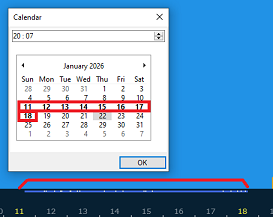
Selecting a position within the blue bar (or picking the date/time from the calendar) allows you to jump directly to a specific date and time. Playback controls allow the user to start, pause, or adjust the speed of the replay. It is also possible to drag the timeline to move forward or backward through the recording for detailed analysis.
If no data appears on screen during replay, verify that the correct date and time have been selected within the highlighted section of the timeline. Confirm that radar overlay and targets (AIS and/or ARPA) are enabled from the "Radar" and "Targets" buttons in the Ribbons.