Viewing a trip
Trip Detail
You can access the list of all your Trips (sorted in chronological order) from the dedicated "Trips" WorkSpace.
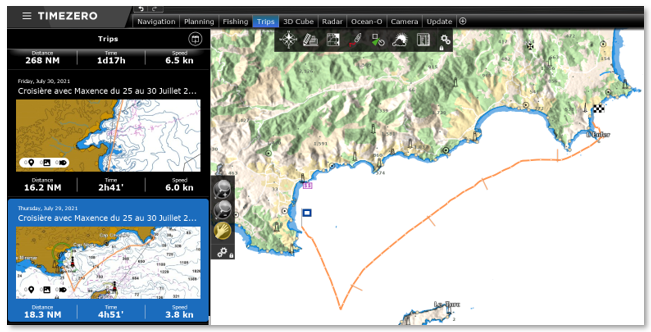
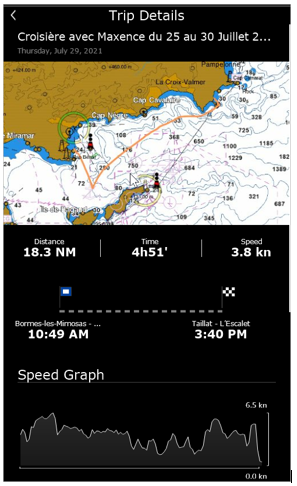
Once you located the trip you would like to display, just click on it to open its detail:
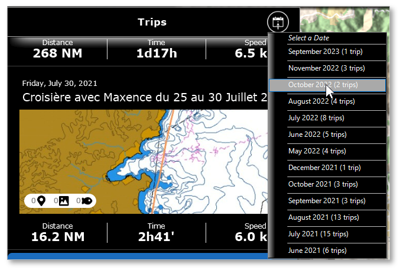
Note that if you have lots of Trips, you can use the calendar icon located at the top to quickly access a specific period:
Trip overview
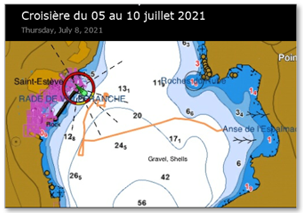
An overview of the trip will be displayed at the top, just below its name. If you Click on the map overview, the trip data will be loaded and displayed directly on the chart.
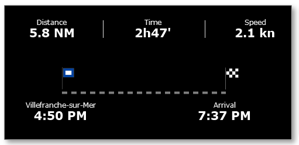
Trip Statistics
The Trip distance, duration and average speed will be displayed, together with time stamped departure and arrival locations. If you have not given a name to the departure and arrival location after creating the Trip, TimeZero will automatically name those points according to your location. You can rename the departure and arrival point anytime by editing the Trip.
Trip Photos and Catches
Any picture that you may have imported into TimeZero will be displayed together with the catches that have been created during the Trip. You can click on a photo to display it in full screen. When the photo is displayed, you can drag it from left to right by clicking on the "<" or ">" buttons to access all the photos related to the trip:
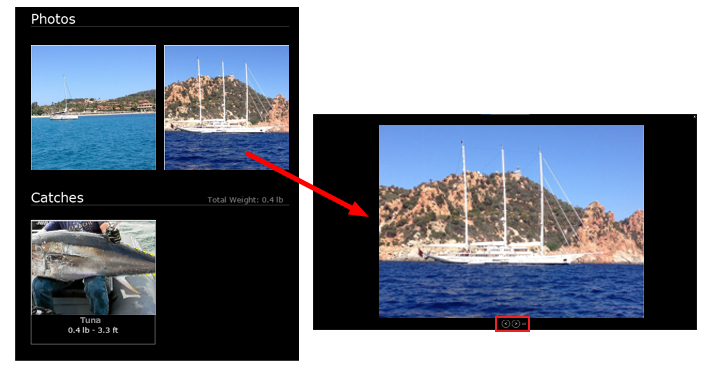
Note: You will not be able to add a Catch after finishing a Trip. Catches are linked to a specific Trip based on their creation date.
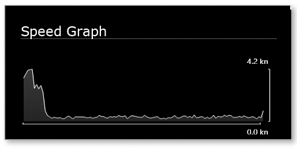
Trip Speed Graph
TimeZero will display a speed graph (using the speed over ground given by the GPS):
Tide & Sunrise/Sunset information
TimeZero will display the tide information as well as sunrise / sunset time of that day:
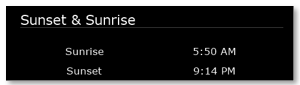
Note: TimeZero displays the tide station that is the closest to the departure location.
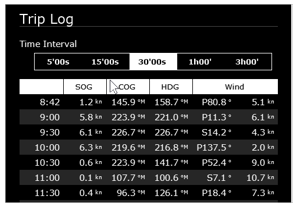
Trip Log
A detailed log of your trip in the form of a traditional timetable will be displayed at the end of the Trip detail screen. The time interval can be adjusted at the top of the table. Any events you may have created during the Trip will be automatically inserted in the timeline:
Note: It is not possible to add an event after finishing a Trip. Events are linked to a specific Trip based on their creation date.
Display Trips on the Chart
Click on the Own ship button on the Ribbon and select "Display Trips" to display all trips on the chart represented by thin orange lines (to avoid cluttering the screen):
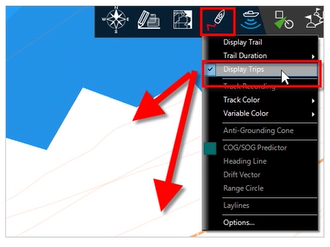
To select a specific Trip and make it more visible on the chart, just click on one of the orange lines. When selected, the Trip will be displayed in bold, and an animation will indicate the direction of the Trip. Time markers will also appear along the trip to indicate the duration of specific points:
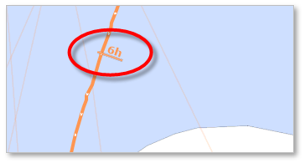
Note: when the trips are not selected (displayed with thin lines), they are simplified to limit the number of points loaded in memory. As soon as you select a Trip, all the points of that Trip are loaded to display the maximum accuracy (up to 5,000 points per trip).
When a trip is selected in the Planning WorkSpace, the Timeline appears in "Trip" mode (Trip Symbol). The timeline start date, end date, and its scrolling speed are adjusted according to the date and duration of the Trip.
Drag the timeline to see the progress of the boat (blue icon) along the route:
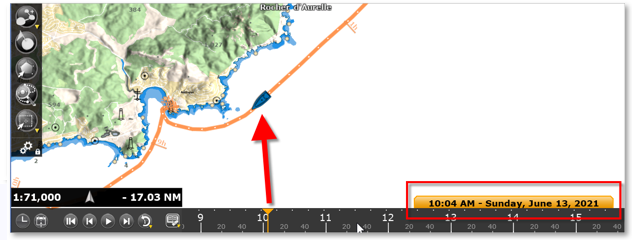
To access data of a specific point along the Trip, click on it. The pop-up menu will appear displaying all data:
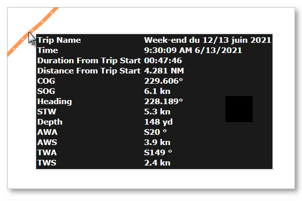
Note: The data that is recorded in the Trip will vary according to the type of instruments that you have connected to TimeZero.