Automatic Port Configuration
The Automatic Port Configuration option of the Connection Wizard scans the system for supported sensors and data sources. It can automatically detect the following:
-
NMEA0183 devices (GPS, AIS, heading, wind sensors, etc.) connected via a serial port or a USB-to-serial adapter, at 4800 or 38400 baud.
-
NMEA2000 devices (GPS, AIS, Heading, Wind Sensor, etc...) onnected through an Actisense USB-NGT-1 or USB-NGX-1 adapter.
-
NavNet Data Sources (FA50, MFDs, etc...) connected via an Ethernet network (wired).
Before starting the detection process, ensure that all sensors are properly connected and powered on.
Note: TimeZero cannot automatically configure data outputs (for example, to an autopilot or an external display). Automatic Port Configuration applies only to data inputs. Output connections must be configured manually by selecting "Data Output and Pilot" in the Connection Wizard first page.
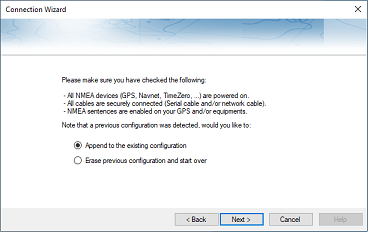
If an existing configuration is detected, the Connection Wizard will prompt you to either add the newly detected sensors to the current configuration or clear the existing configuration and start from scratch, configuring only the sensors detected during the new scan:
After detection is complete, the wizard displays a summary page showing the list of ports receiving data on the left and detailed information for the selected port on the right:
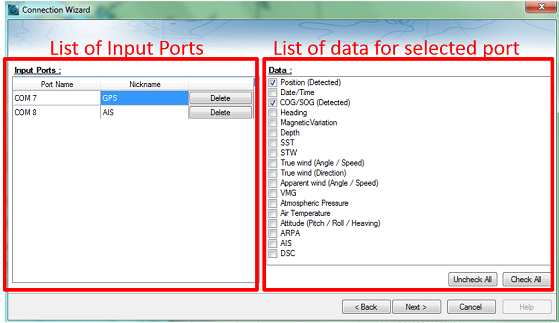
All detected data types are automatically enabled and displayed in the Details panel on the right. You may disable specific data types on a given port if you do not wish to use them. For example, it is generally not recommended to use position or heading data from a port connected to an AIS sensor.
You may also assign an optional nickname to each configured port in the left panel, such as GPS, Heading, or AIS, to help identify data sources more easily.
If you do not wish to use a port that was automatically detected, select it in the left panel and click Delete.
Click Next to proceed to the Data Source page, where you can adjust port priorities.
Note: If a port or data type appears to be missing, verify the wiring and use the Port Monitor to confirm that data is being received correctly