Extracting Recorded Data
The "Voyage Data Recorder" module needs to be configured to access this feature.
Using the Record & Replay Options
Data that has been recorded in TimeZero (but not yet Archived) can be extracted from the Record & Replay Options by pressing the "Export Recorded Data..." button and selecting a starting date and a duration:
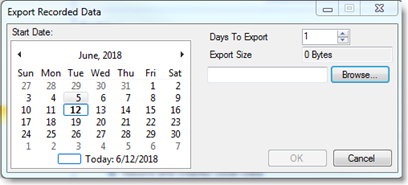
Choose the starting date using the calendar and the number of day(s) you which to export.
TIPS: The days with available recorded data will appear in bold.
Once your time span has been defined, click on “Browse” to select a destination (for example a USB Drive) and click on “OK”. TimeZero will create a folder named “TZ Backup yyy-mm-dd” containing the recorded data for that starting date and duration.
Using Windows Explorer (for Archived Data)
Data that has been archived is not available anymore inside TimeZero (it is unloaded to free memory) and as such the "Record & Replay" Options cannot be used to export archived data. Instead, you just need to use Windows Explorer to browse to the archive location. The data is organized in various weekly sub-folders. Simply copy the folder corresponding to the week you want to extract. If you want to replay a range of days occurring in between two weeks, simply copy the two week folders.
Replay extracted (or archived) data
Please refer to the Replay Archived Data chapter for more information on how to replay archived or extracted data