Simulation Mode
TimeZero includes a Simulation Mode designed for training, demonstrations, testing, and system familiarization without requiring live navigation sensors. When enabled, TimeZero generates realistic navigation, radar, and AIS data. Simulation Mode is particularly useful for:
-
Training and instruction
-
Software demonstrations
-
System testing without sensors
-
Learning Radar and AIS behavior
-
Classroom or onboard familiarization
Starting TimeZero in Simulation Mode
Simulation Mode is enabled by launching TimeZero with the /simulation startup parameter (please refer to Startup Mode for more information). When started this way, TimeZero automatically enters simulation mode. A yellow “Simulation Mode” indicator is displayed in the status bar to confirm the simulation mode is enabled.
Own Ship Simulation
The Own Ship Simulation section allows you to control how TimeZero generates navigation data for your vessel. When enabled, all Own Ship data such as position, heading, speed, depth, wind, and environmental values is produced by the simulator instead of coming from external instruments.
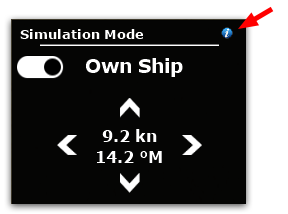
When the Own Ship simulation is enabled, TimeZero ignores live navigation inputs. When disabled, TimeZero can once again receive data from connected NMEA0183 or NMEA2000 devices. You can add the "Simulation Mode" NavData to toggle ON/OFF the Own Ship simulation quickly and adjust the vessel Course and Speed. In addition, you can set a manual Lat/Lon by clicking on the blue "i" icon:
If you prefer to position the simulated vessel manually, simply right-click on the chart and select Move Boat Here. You can also adjust the vessel’s speed and course by right-clicking on the Own Ship icon and selecting Set Speed and Course. A rubber line will appear, allowing you to define the desired speed and direction by moving the cursor:
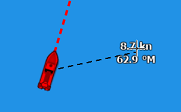
Note: When a route is activated, the simulated vessel will automatically follow the active route. You can still control the vessel’s speed using the Simulation Navigation Data settings.
Additional settings available under Simulation Options allow you to simulate realistic vessel behavior, including offsets and environmental variations, making Simulation Mode suitable for both training and testing.
Radar Simulation
Radar Simulation provides a realistic radar picture without requiring a physical radar. The simulated radar image is generated using chart elevation data, AIS targets, and floating objects such as buoys and beacons.
When Radar Simulation is active, TimeZero uses a generic radar profile, and standard radar controls such as range, gain, sea clutter, rain clutter, and noise rejection affect the simulated image in a realistic manner.
Tip: You can use simulated AIS targets to create realistic ARPA targets. First, create a simulated AIS target, which will generate a corresponding radar echo. Then disable AIS/ARPA Association in the Targets Options to prevent fusion between AIS and ARPA targets, and hide AIS targets using the Targets button in the Ribbon. Finally, double-click the radar echo generated by the simulated AIS target to acquire an ARPA target.
AIS Simulation
AIS Simulation allows you to create and manage simulated AIS targets directly on the chart. These targets are fully integrated into both the navigation display and the radar simulation.
To create a simulated AIS target, simply right-click on the chart and select Create Simulated AIS Target. A rubber band will immediately follow the cursor, allowing you to set the target’s initial speed and direction.
Right-clicking on a simulated AIS target lets you modify its speed and course, remove the selected target, or erase all simulated AIS targets.