Recording a Trip
To start recording a Trip, tap on the "NAV" button located at the bottom right of the screen and tap on "START":
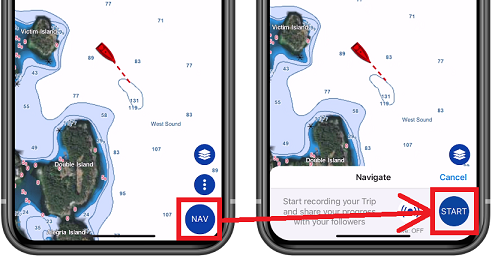
As soon as the navigation is started, TZ iBoat automatically switches to Head Up mode, and starts recording your Trip data:

TIPS: when enabling the Navigation mode, TZ iBoat automatically switches to the "Head Up" mode and tilts the screen slightly (in 3D) to extend the view in front of your boat. If you prefer to navigate in "North Up" and/or would prefer to stay in 2D, you can disable "Navigate in Head Up" and/or "Head Up in 3D" respectively from the Plotter settings.
When the Navigation mode is enabled, the Trip Bar will appear automatically at the bottom of the screen. The Trip Bar shows the Trip distance, Trip duration, Speed (Speed Over Ground), and allows you to pause or stop the navigation. Note that it is possible to customize the data being displayed inside the Trip Bar from the General settings under the "Trip Bar" section.
When you press the "STOP" button, you can choose to pause the Trip recording or stop the navigation and finish the Trip. After finishing the Trip, you will be able to enter a name, a description, set its sharing status (please refer to Sharing Trips for more information), enter the departure and arrival name, as well as adding any pictures you want from your Album:
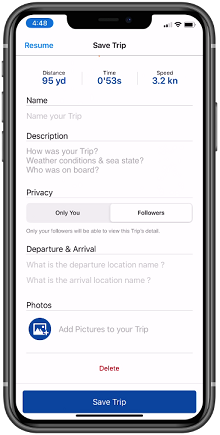
TIPS: If you do not enter all the information after finishing the Trip, TZ iBoat will automatically fill some names based on the location. You will always be able to update any of the fields later by editing a Trip.